
Design & Print Tips
Understanding DPI: How to Ensure Your Clipart Prints Perfectly
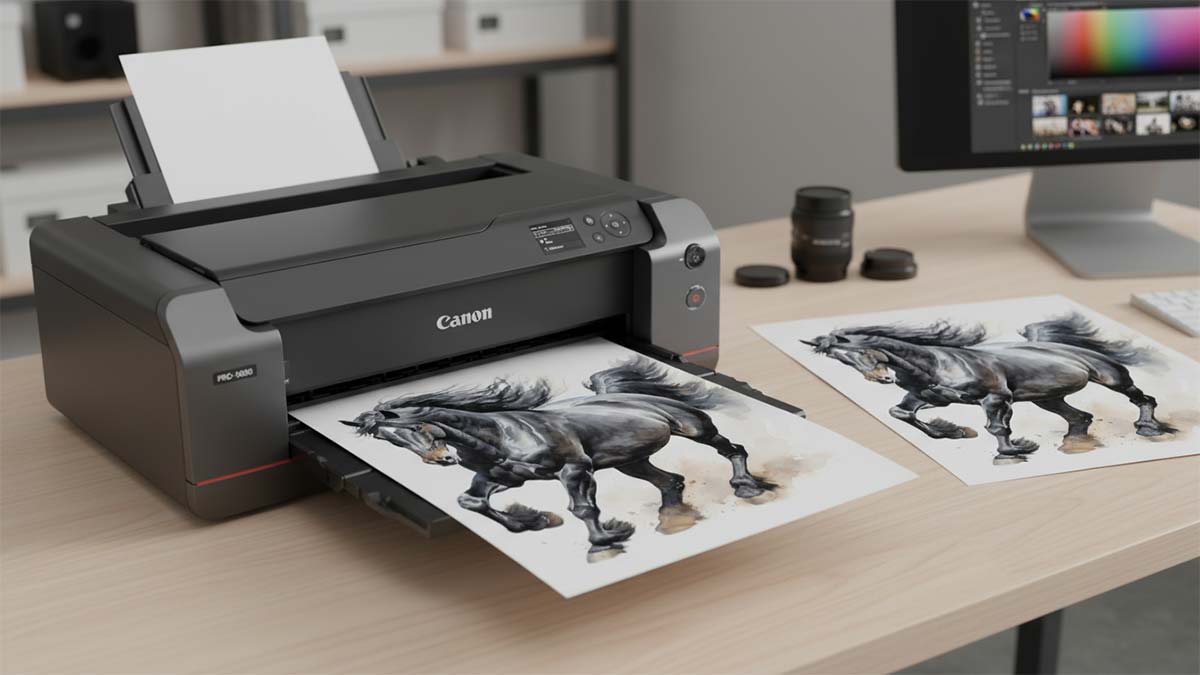
Your clipart looks amazing on screen, so why does it print like garbage? Nothing stings quite like spending hours perfecting a design, hitting print, and watching your beautiful clipart emerge looking like it survived a blender accident.
Understanding DPI vs PPI will save you from this heartbreak (and a lot of wasted paper).
The Great DPI vs PPI Mix-Up (And Why It Matters)
Let’s clear this up right away: DPI and PPI aren’t the same thing, even though people throw these terms around interchangeably. I used to do it too until a print shop owner politely schooled me during the early days of my career.
PPI (Pixels Per Inch) describes digital images—how many pixels you’ve crammed into each inch of your screen image. DPI (Dots Per Inch) describes printed output—how many tiny ink dots your printer places in each inch of paper.
Think of it this way: PPI lives in your computer, DPI lives in your printer. Different worlds, different rules.
Why This Confusion Exists
Here’s the kicker—most design software displays “DPI” in their export settings when they really mean PPI. Even Adobe does this! It’s like calling every tissue a Kleenex. Technically wrong, but everyone does it anyway.
What Resolution Actually Means for Clipart
When you’re working with clipart, resolution determines how much detail you can pack into each inch. Higher resolution means more information, which means sharper prints.
The Magic Numbers You Need to Know
- 72 PPI: Perfect for screens, terrible for print
- 150 PPI: Acceptable for basic print projects
- 300 PPI: The gold standard for professional printing
- 600+ PPI: Overkill for most projects (and creates massive files)
FYI, I’ve tested this extensively. Anything below 150 PPI will make your clipart look fuzzy when printed, no matter how crisp it looks on your monitor.
Screen vs Print: Why Your Eyes Lie to You
Your computer monitor displays everything at roughly 72-96 PPI. That adorable clipart bunny looks perfect on screen because your screen doesn’t need more detail than that.
But here’s where things get tricky—when you send that same 72 PPI image to a printer, you’re asking it to stretch those pixels across paper. The printer tries its best, but you end up with blurry, pixelated results.
It’s like trying to make a postage stamp into a poster. The image information just isn’t there to fill the space.
How to Check Your Clipart’s Print Readiness
Before you waste expensive paper and ink, check these specs:
Quick Resolution Check
- Right-click your image file and select “Properties” (Windows) or “Get Info” (Mac)
- Look for dimensions and resolution
- Calculate the print size: Width in pixels ÷ 300 = maximum width in inches for quality printing
The Math That Saves Your Sanity
Let’s say you have clipart that’s 900 pixels wide. At 300 PPI, that image will print cleanly at 3 inches wide (900 ÷ 300 = 3). Try to print it larger, and you’ll see quality drop fast.
Setting Up Your Clipart for Perfect Prints
When Creating New Clipart
- Start with your end size in mind
- Set your canvas to 300 PPI for print projects
- Work larger than your final output size when possible
- Save in formats that preserve quality (PNG or TIFF for raster images)
When Working with Existing Clipart
You can’t magically add detail that wasn’t there originally, but you can optimize what you have:
- Never upscale raster clipart beyond its original dimensions
- Use vector formats when possible—they scale infinitely without quality loss
- Consider recreating simple clipart as vectors if the original resolution is too low
Common Printing Pitfalls (And How to Avoid Them)
The “Looks Good to Me” Trap
IMO, the biggest mistake people make is judging print quality by how something looks on screen. Always do test prints before committing to large runs.
Color Mode Confusion
RGB colors (what you see on screen) don’t always translate perfectly to CMYK (what printers use). That bright blue might become muddy purple when printed. Switch to CMYK color mode in your design software to see a more accurate preview.
File Format Fumbles
JPEGs compress your images and can introduce artifacts. For clipart, stick with PNG files to maintain crisp edges and transparent backgrounds.
Tools and Settings That Actually Work
Adobe Photoshop/Illustrator
- Set new documents to 300 PPI for print
- Use “Export As” instead of “Save for Web” for print files
- Choose PNG or PDF for maintaining quality
Free Alternatives
- GIMP: Set image resolution under Image > Print Size
- Canva: Select “Print” quality when downloading designs
The key is knowing your software’s quirks and working with them, not against them.
Real-World Resolution Guidelines
Here’s what I’ve learned works in actual practice:
Business Cards and Small Items
- 600 PPI minimum for tiny text and details
- Vector formats whenever possible
Flyers and Posters
- 300 PPI works perfectly
- Large format prints can get away with 150 PPI if viewed from a distance
Web-to-Print Projects
- Always ask for print specs upfront
- Build in extra resolution if you’re unsure about final dimensions
The Bottom Line: Quality Starts at Creation
You can’t fix low-resolution clipart after the fact—at least not without some serious Photoshop wizardry that takes longer than starting over. The secret is planning ahead and understanding your output requirements from day one.
Want my honest advice? Assume everything you create will eventually need to be printed, even if it’s starting as a digital project. Clients love changing their minds, and you’ll thank yourself for having that high-res version ready to go.
Next time you’re working with clipart, remember: your screen is a liar, 300 PPI is your friend, and test prints save relationships 😃
